
In short, an OKX passkey is an optional authentication method that helps you sign in and complete key security checks using your device’s biometrics, screen-lock PIN, or a FIDO2 security key instead of a password. You can create one in the security settings on the website or app, but the screens and behavior may vary depending on your operating system, browser, app version, saved account, and region. Before setting one up, check compatibility and recovery options; afterward, test an actual sign-in and review your linked devices.
Check the number registered for your account: Official FAQs and web and app settings documentation differ in how they describe registration limits, so this article does not state a universal limit for all accounts. Go to Security → Passkeys to check your current registration status and whether you can add another passkey. If the screen differs from the help information, or coverage for Apple devices or storage locations is unclear, contact OKX Official Customer Support. You do not need to delete an existing passkey to check.
Security and asset risks: Passkeys can help reduce password exposure and phishing risks, but they do not guarantee complete protection against account takeovers, malicious apps, withdrawals that you approve yourself, or investment losses. Deleting a passkey or changing security settings may result in restrictions, such as withdrawal limits, as indicated in your account notices. Cryptocurrency transfers may be difficult to reverse.
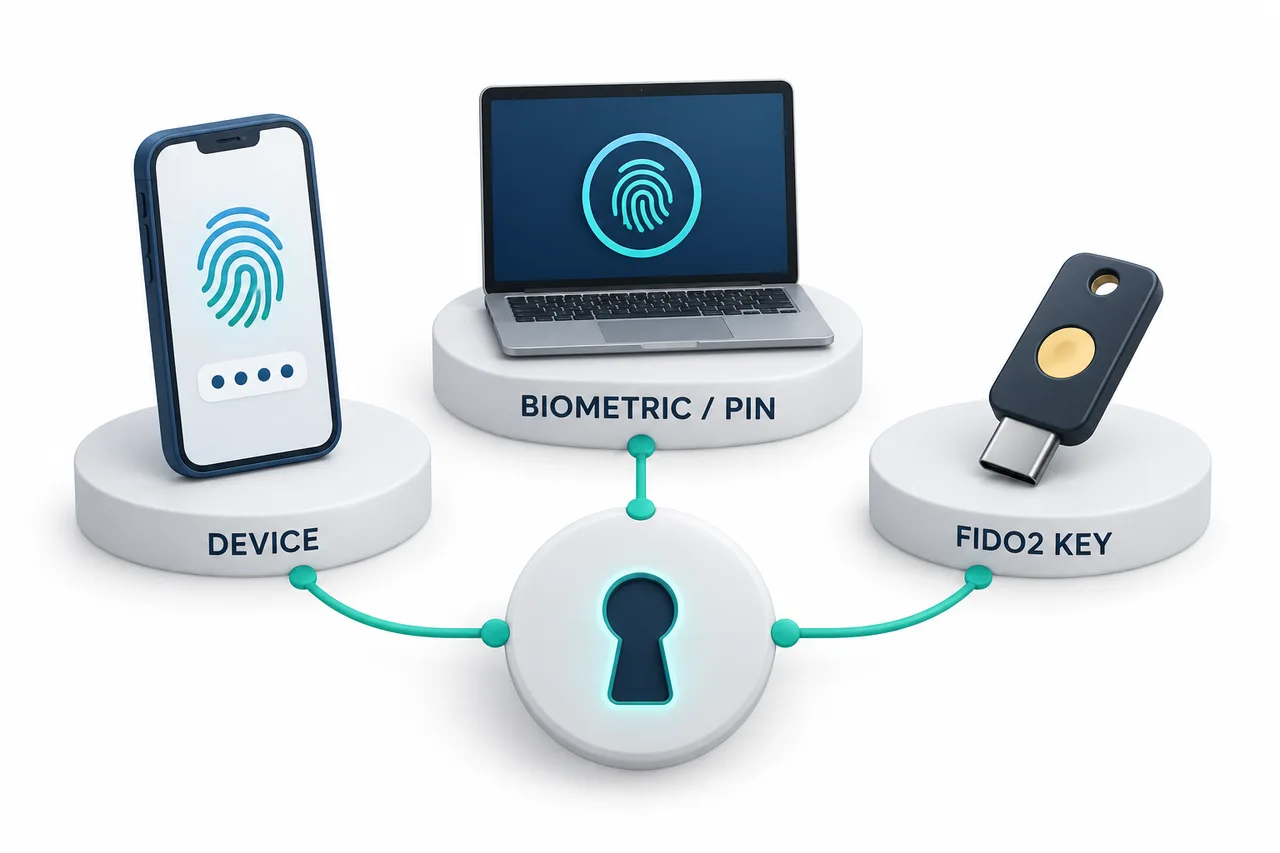
OKX Passkey overview
| Item to check | OKX Official guidance · User action |
|---|---|
| Passkey purpose | Supports FIDO-based two-factor authentication and passwordless sign-in Check: Confirm which options are actually available: device biometrics, PIN, or FIDO2 security key |
| Required? | Optional, but recommended to strengthen security Check: Keep alternative sign-in and recovery options available |
| Web environment | Guidance specifies Windows 10 or macOS Ventura, iOS 16+ or Android 7+ devices, and FIDO-compatible browsers Check: Confirm Chrome 109+, Safari 16+, or Edge 109+ |
| App environment | Guidance specifies iOS 16+ or Android 14+. The separate Passwords app requires iOS 18+ Check: Confirm the app is up to date and that Google services are accessible on Android |
| Initial app setup | Complete the security verification required on the current account screen Check: Complete the verification shown on the current account screen |
| Deletion | Deleting without verifying with another passkey may result in a 24-hour withdrawal restriction Check: Review the actual warning and prepare recovery options before deleting |
| Storage location | Varies depending on Apple ID, Google Password Manager, Chrome, or another storage location Check: Do not assume it will sync automatically across different ecosystems |
Android 7+ in the web guidance and Android 14+ in the app guidance apply in different contexts. OKX When creating a passkey directly in the app, it is safer to follow the stricter Android 14+ requirement in the app documentation and the actual account screen. Passkeys are also separate from KYC, so check the OKX KYC and identity verification guide for account setup steps.
What to prepare before setup
- Update your operating system and OKX app to the latest stable version.
- On the web, use Chrome 109 or later, Safari 16 or later, or Edge 109 or later.
- Make sure your phone’s screen lock, fingerprint, or face recognition is working properly.
- On Apple devices, make sure you are signed in to the Apple ID used to create the passkey.
- On Android devices, make sure you can access Google services and Google Password Manager.
- For a physical security key, check that it supports FIDO2 and that you know its PIN.
- Check that alternative security methods, such as your email, phone, and authentication app, belong to you.
- Check directly that the address bar shows okx.com. Do not use sign-in links from emails or text messages.
For the full process, from account creation through security settings, also refer to the OKX comprehensive user guide.
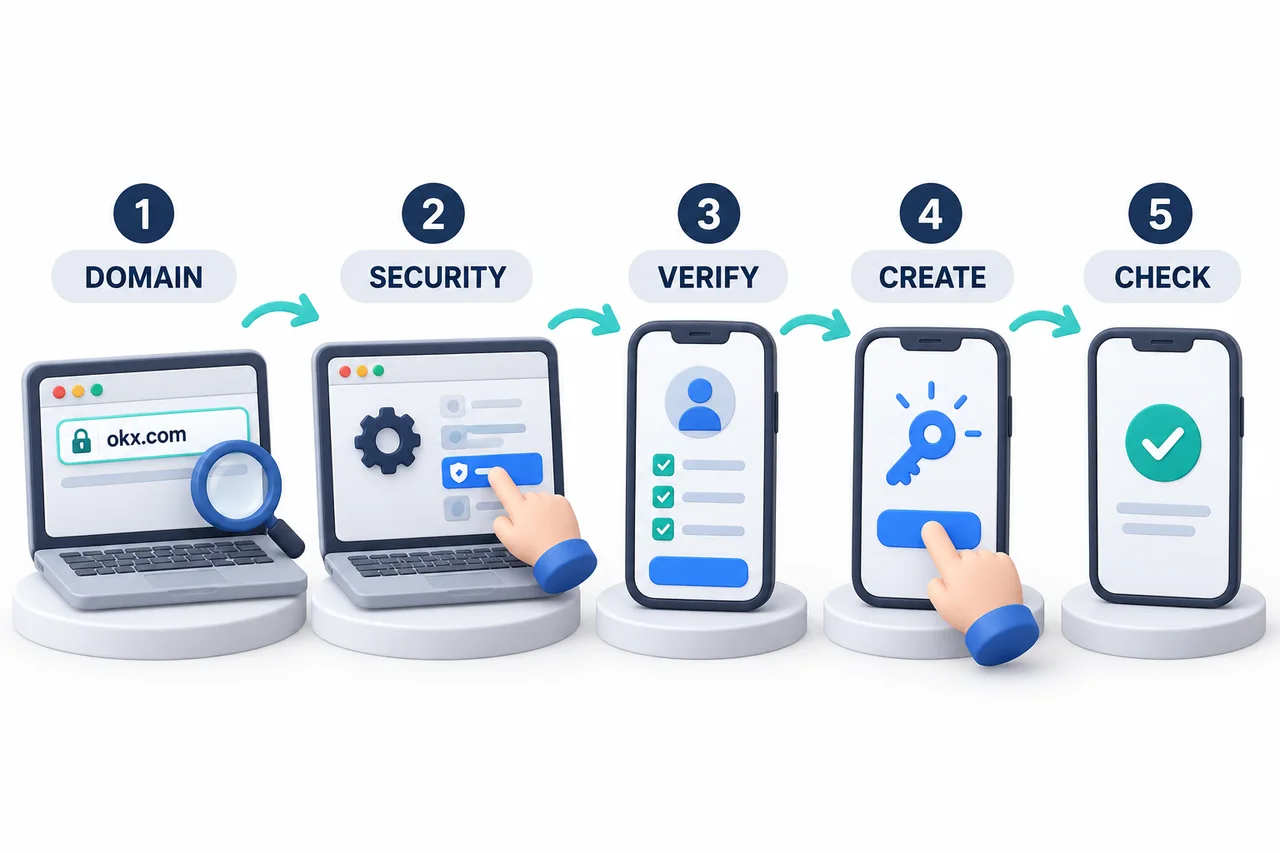
How to set up an OKX passkey on the web
- Enter okx.com directly in your browser’s address bar and sign in.
- From the profile menu, go to Security or Security Settings.
- Select Passkeys in Security Settings and complete the security verification prompted on the screen.
- To create one on the current device, select Continue or the current-device option, then verify with your fingerprint, face recognition, or device PIN.
- To use another device, select the option for another device and scan the displayed QR code with the phone or tablet where the passkey is stored.
- To use a physical security key, select the USB security key option, connect your FIDO2 key, and follow the instructions to register it.
- After setup, sign out and sign back in to check that the passkey appears and works properly.
Menu names may vary by region or following interface updates. Rather than copying the steps shown on another device, follow the Security and Passkeys path displayed in your signed-in account.
How to set up an OKX passkey in the app
- Open the OKX app and go to the menu.
- Select Account settings → Security → Passkeys in order.
- Select Passkeys and complete the security verification requested on the account screen. Requirements may vary by account and platform.
- To create one on your current phone, select Continue and verify with your fingerprint, Face ID, or device PIN.
- To use another phone or tablet, select it under Other Options and scan the QR code.
- To use a physical security key, select Security key and connect your FIDO2 key.
- After setup, check the registration status and name again under Account settings → Security → Passkeys.
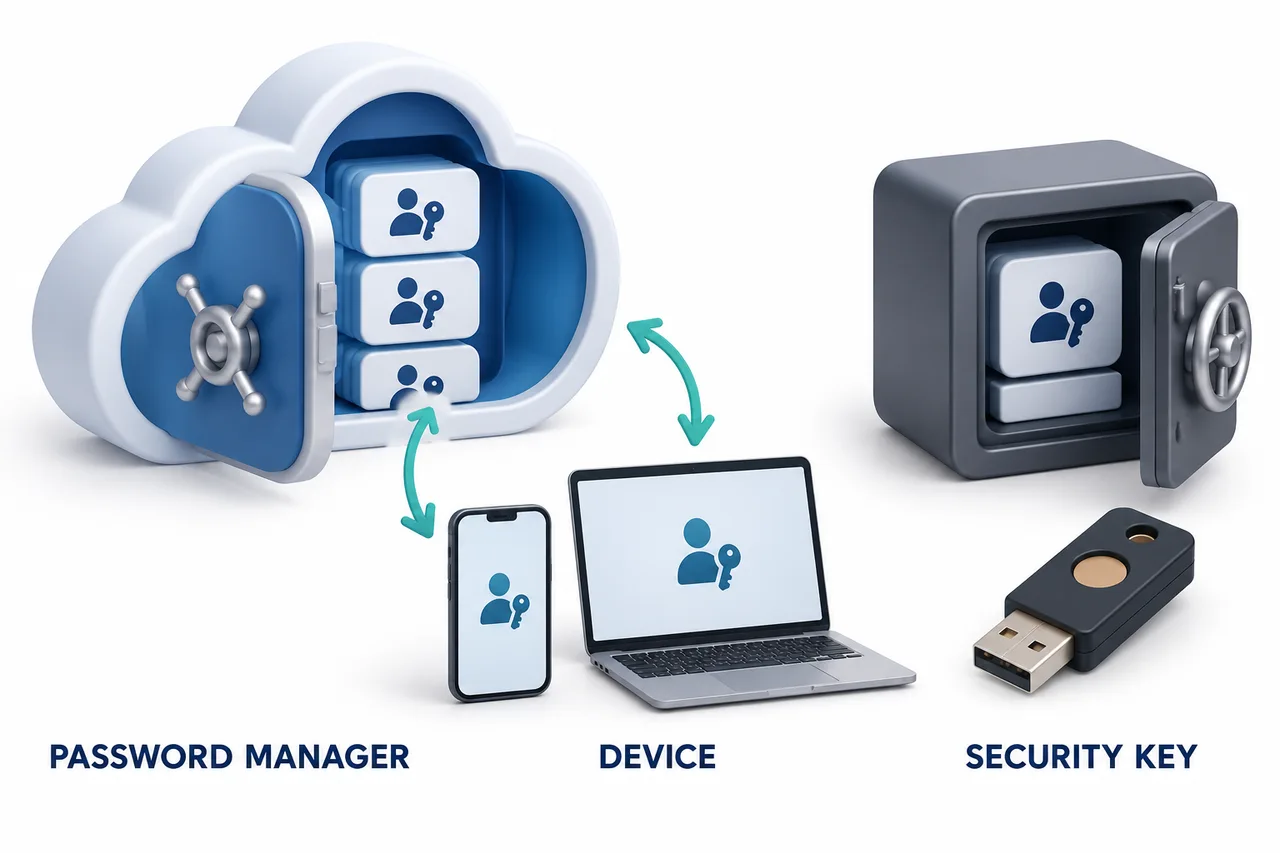
Using a new phone or another device
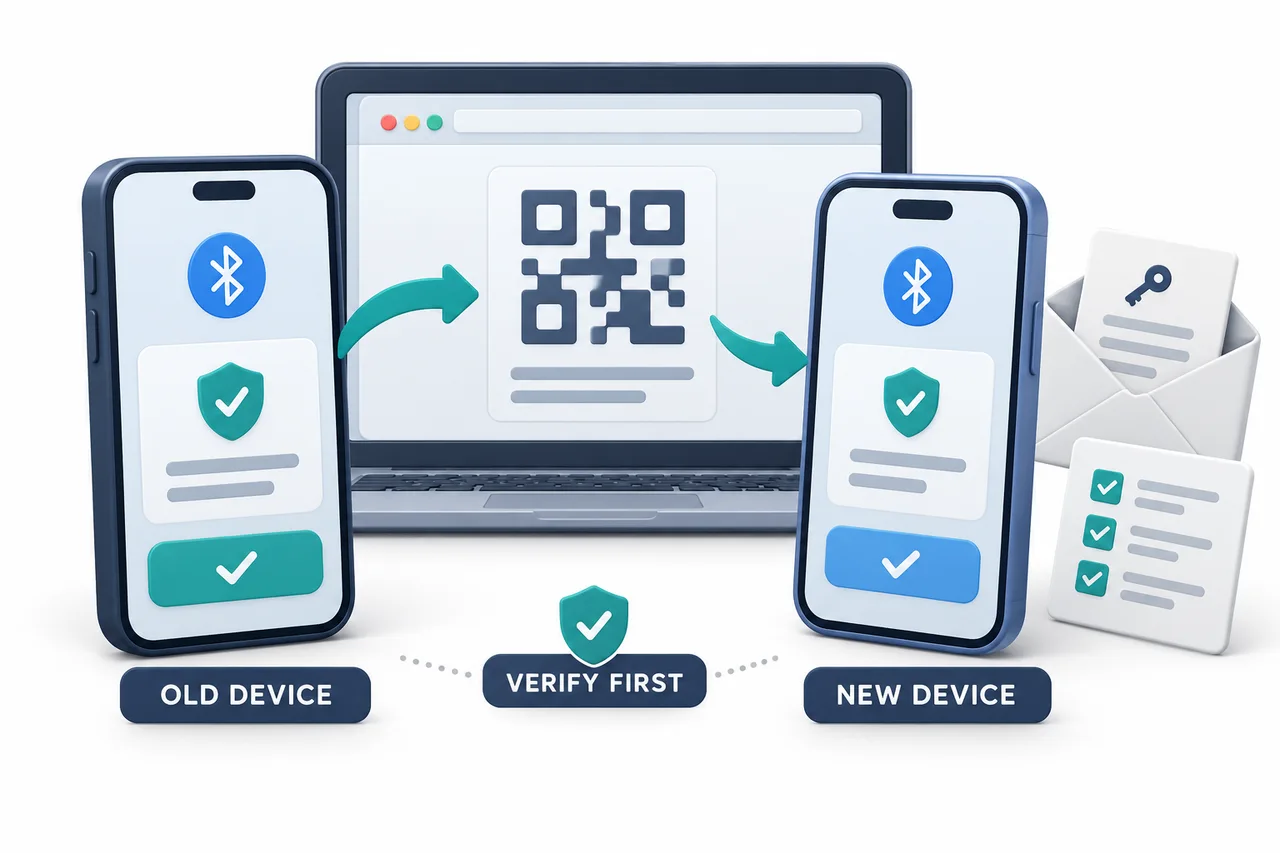
A passkey is not copied as the same string across all browsers and devices like a regular password. Where it can be used depends on whether it is stored with your Apple ID, Google Password Manager, Chrome profile, or another password manager. On a new iPhone, you can scan a QR code with a compatible device to sign in. When creating a new passkey, you may be instructed to keep the existing device nearby, turn on Bluetooth on both devices, and approve the action on the existing device. Syncing through the same Apple ID or a supported storage service is different from authenticating with a QR code on another device. Do not reset your existing device or delete the passkey before verifying authentication and alternative sign-in options on the new device.
- Select the option to use a passkey on the sign-in screen.
- Select Other Sign In Options or the option to use another device.
- Select an iPhone, iPad, or Android device.
- Scan the displayed QR code with the device where the original passkey is stored.
- Complete biometric verification or enter your PIN on that device.
- After signing in, check Linked Devices for any unfamiliar sessions.
Do not save a new passkey on a public computer or leave a device unlocked. If an existing passkey does not work with a new Apple ID or on a new device, you can delete it and create it again, but first read the notice about the 24-hour restriction that may apply depending on how you delete it.
Common passkey errors and troubleshooting steps
| Symptom | Possible cause · What to do first |
|---|---|
| A QR code appears on an existing iPhone | The iOS version is too old to fully support passkeys Check: Update iOS to the latest stable version |
| Unable to create one on iOS 18 | The Apple Passwords app is missing or not working properly Check: Distinguish the app documentation's iOS 16+ requirement from the iOS 18+ requirement for the separate Passwords app |
| No passkey found | No passkey is available on the current device or in its storage Check: Select Use another device and scan the QR code with the original device |
| Doesn't work after reinstalling the Android app | Loss of local security data when reinstalling the Android app, as explained in the official FAQ Check: Consider reconnecting the passkey; next time, update it from the Play Store instead of uninstalling it |
| Chrome repeatedly requests a PIN or password | Authentication by the operating system, Google Password Manager, or an extension's storage Check: Check the popup's logo and requesting party, then use the PIN for that storage |
| No popup appears on iPhone | An issue with Autofill or password provider settings Check: Check that Passwords is enabled in iOS Autofill and Passwords settings |
| Face verification fails | Lighting issue or maximum number of attempts reached Check: Adjust the lighting; if you have reached the limit, contact official customer support |
| A notice says the feature is not supported in your region | The app is outdated or unsupported in your current region or on your device Check: If the issue persists after updating the app, do not try to bypass the restriction; check with official support |
A system PIN, Google Password Manager PIN, or password manager master password requested in Chrome is not information you should provide to OKX customer support. If the popup's origin is unclear, do not enter anything.
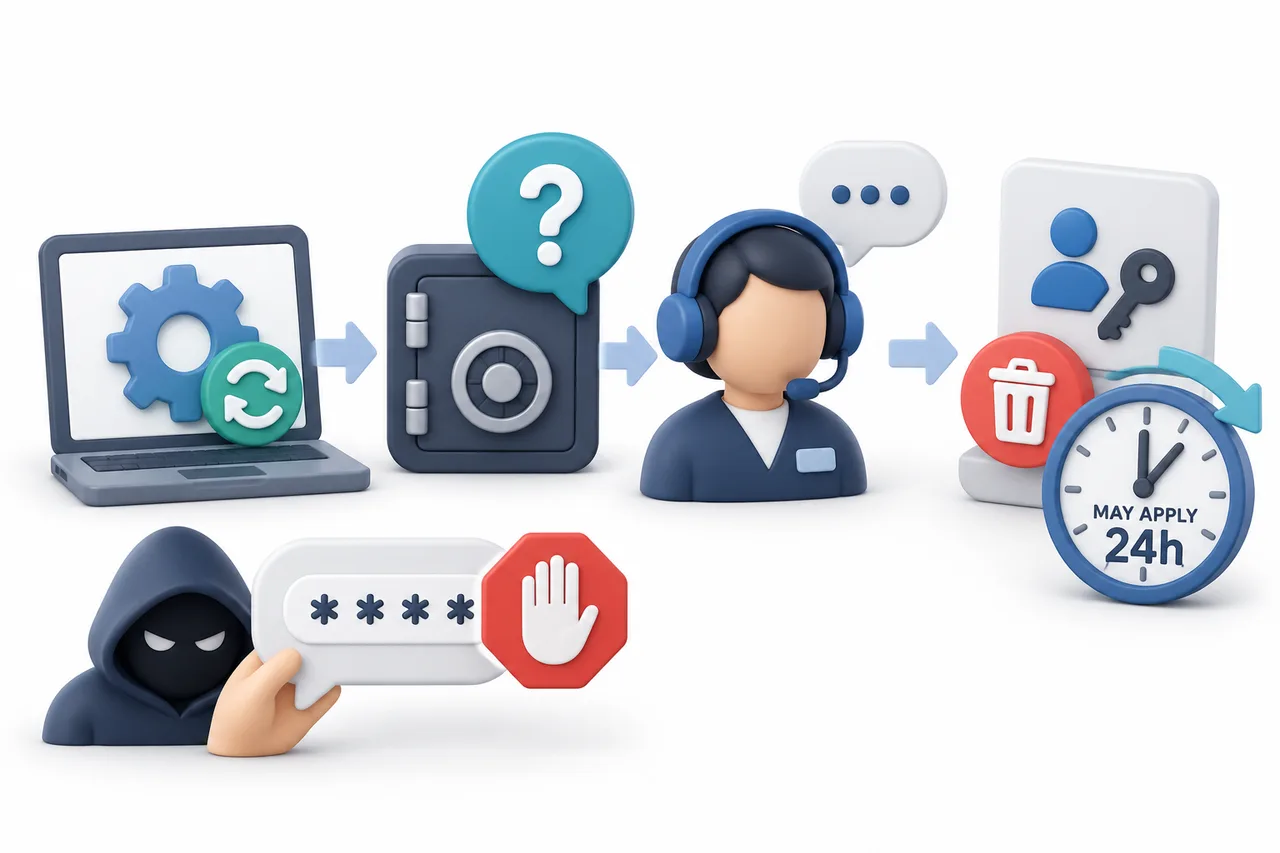
Renaming and deleting passkeys and the 24-hour restriction
On the web, select the passkey in Profile → Security → Authentication methods → Passkeys and check for the rename option. In the app, select the item in Menu → Account settings → Security → Passkeys. Changing the display name in OKX does not change the name of the storage location or device.
- Select Remove next to the passkey and complete the required security verification.
- According to the official website and app notices, deleting a passkey without verifying with another passkey may result in a 24-hour withdrawal restriction. Do not assume this always applies to every deletion; read the actual warning. Check account notifications separately to see whether other features, such as P2P, are restricted.
- Before deleting it, make sure you are ready to set it up again on a new device and have an alternative login method.
- If a passkey was not registered by you, do not assume this is a routine device change; follow the account suspicious activity procedure.
Distinguish deletion from review: The latest web and app documents separately state that a review may take up to 24 hours if additional verification is required. This statement does not guarantee immediate approval for every account or the removal of withdrawal restrictions. Passkey use for exchange-account security differs from its use in DEX trading wallet and Pay; check the service and network labels on each registered item. Changes to or recovery of an authenticator app are covered separately in OKX OTP·2FA guide.
Set up anti-phishing, linked-device, and withdrawal security together
OKX The official account security guide describes your login password, email verification, authenticator app, mobile and face verification, passkeys, and anti-phishing code as complementary security measures. When you set an anti-phishing code, you can verify the code you chose in emails sent by OKX. Check suspicious emails, phone numbers, and URLs using OKX Channel Verification, and enter the official domain directly in the address bar instead of following links in text messages or emails.
- Remove unrecognized login devices from Security Settings → Linked Devices.
- Revoke access for third-party apps, API keys, and linked accounts that you did not authorize.
- Use a unique password different from OKX for your email account, along with separate 2FA.
- Check your withdrawal address book for addresses you did not add.
- If you notice suspicious activity, change your password, contact official support, and request an account freeze if necessary.
For an overview of proof of reserves and account protection measures, see OKX Safety and Account Security Guide; to reduce errors with withdrawal addresses and networks, see OKX Deposit and Withdrawal Guide.
Practical security checklist
- □ I confirmed that this is the official domain and official app.
- □ I used a unique login password different from my email password.
- □ I own the primary authentication methods, such as email, SMS, and an authenticator app.
- □ If I chose to use a passkey, I verified it on my current device or a compatible FIDO2 security key.
- □ I know which Apple ID, Google account, or browser storage holds my passkey.
- □ I reviewed linked devices and third-party app permissions.
- □ I set an anti-phishing code or checked my existing code.
- □ There are no unrecognized addresses in my withdrawal address book.
- □ I prepared my existing device and an alternative verification method before switching to a new device.
- □ I do not share authentication or recovery information with customer support or anyone else.
New users should first check the referral code OKDCC and the displayed terms on the sign-up screen, then check the actual application and rate in My Rewards after signing up. Rebates may vary depending on account, region, VIP, and campaign terms; a specific discount rate or duration is not automatically guaranteed for all users.
Risks that passkeys cannot prevent
- The risk of someone else using an unlocked device
- The risk of an Apple ID, Google account, or password manager being compromised
- The risk of a malicious browser extension or app intercepting information
- The risk of being deceived by fake customer support or phishing sites
- The risk of a user directly approving a malicious withdrawal or trade
- The risk of coin price volatility, leverage, liquidation, and investment losses
- The risk of losing a physical security key, device, or recovery method
Frequently asked questions
Is it mandatory to set up an OKX passkey?
No. OKX The official FAQ says passkeys are optional. However, they are recommended as a way to strengthen account security because they enable passwordless login and device-based authentication.
Will creating a passkey eliminate passwords entirely?
Passkeys allow passwordless login, but a password or other verification may be required again depending on the platform, region, device status, or recovery process. Keep your alternative authentication methods secure as well.
Will my existing passkey transfer automatically if I change phones?
Not always. It may sync if you use the same Apple ID or a supported password manager, but it may not appear depending on the storage location and platform. You may need to use the other-device option and QR code verification, or set it up again on the new device.
Is the PIN Chrome requests my OKX password?
Not necessarily. It may be your Windows or macOS device PIN, Google Password Manager PIN, or the master password for a password manager extension. Check the popup's logo and requesting party.
Will I be unable to withdraw immediately after deleting a passkey?
Official web and app guidance explains that deleting a passkey without confirming it using another passkey may result in a 24-hour withdrawal restriction. A review pending additional verification and a withdrawal restriction are separate procedures. Do not assume that the same conditions apply to other features such as P2P; read the actual warning shown on your account before deleting it.
What should I do if I see a message saying that my region is not supported?
First, update the OKX app to the latest version. If your region is still unsupported, do not try to bypass the feature; contact official customer support to confirm availability for your account and region.
OKX Official Sources
- Passkey FAQ — Updated August 26, 2026
- How to Create a Passkey on the Web — Updated October 22, 2026
- How to Create a Passkey in the App — Updated October 22, 2026
- Guide to Strengthening Exchange Account Security — Updated August 26, 2026
- How to Use a Physical Security Key — Updated August 25, 2026
- Protecting Your Account After Detecting Suspicious Activity — Updated August 25, 2026
Last reviewed: October 25, 2026. We cross-checked official guidance on web and app settings, the Passkey FAQ, account security, physical security keys, and responding to suspicious activity. Official update dates and the AKEYX review date are different. We have not treated the difference in registration counts as resolved; it remains something to verify on the account screen or with official support. The setup sequence and checklist have been reorganized for readers to use as a self-check; they do not mean that authentication or recovery was tested on a personal account. This article provides general account security information and is not investment, legal, or tax advice. Cryptocurrency trading and holding involve the risk of losing principal, and policies and screens may vary by region, account, and app version, so check the account you are logged into and the official help resources again immediately before proceeding.